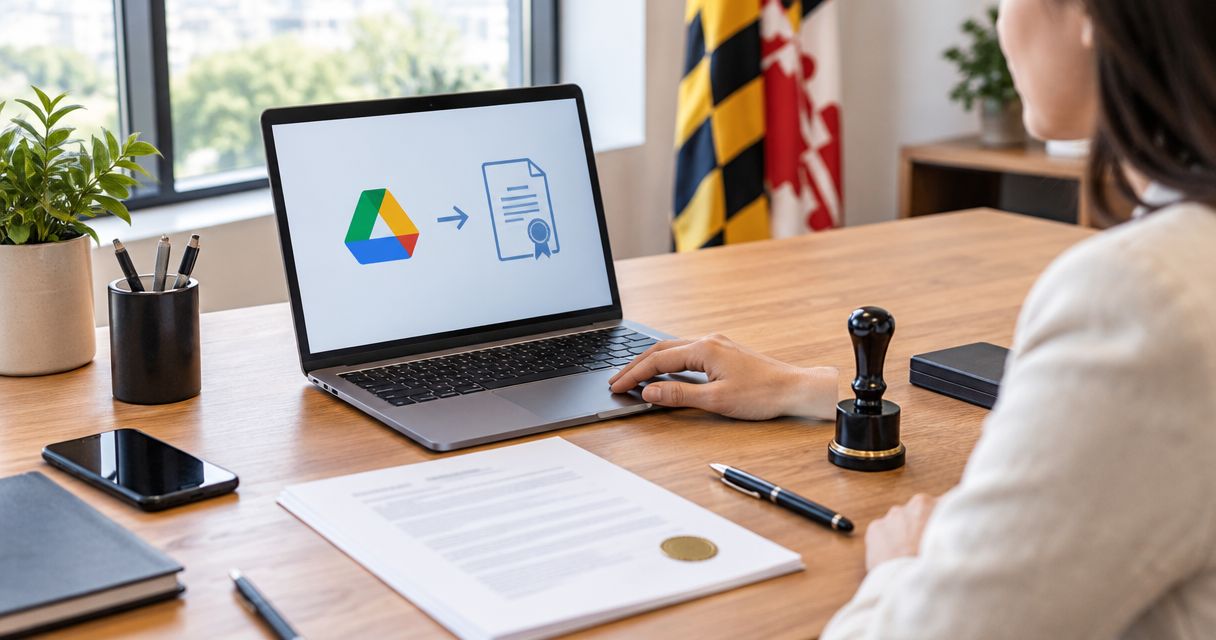
Instead of manually emailing changing document versions, use a controlled Google Drive-to-PDF workflow to prepare eligible documents for Maryland remote online notarization through Proof. This 2026 guide explains file preparation, appointment requests, identity verification, and returning the completed document to Drive without confusing it with an unsigned draft.
- Craigvetnotary is best for Maryland individuals and businesses seeking remote online notarization of eligible documents through Proof.
- Getting Google Drive documents notarized in Maryland requires a notarial appointment; storing or sharing a file does not notarize it.
- Export the final document as a PDF, confirm eligibility, and follow the appointment instructions for Proof identity verification.
- Keep the completed notarized file separate from drafts, and confirm the recipient’s submission requirements before your appointment.
Why this matters
Google Drive handles document storage and collaboration. Proof supports the remote notarization appointment. A Google Drive signature, sharing permission, or PDF export is not a notarization.
The practical handoff is a finalized document, an eligibility review, identity verification, and the required notarial process. This guide describes that handoff, not an automatic connection between Google Drive and Proof.
Craigvetnotary provides Maryland remote online notarization through Proof and in-person mobile appointments. Craigvetnotary is best for Maryland individuals and businesses seeking remote online notarization of eligible documents through Proof. Mobile appointments are secondary; confirm Baltimore County availability before booking.
For your 2026 workflow, settle the receiving organization’s requirements before requesting an appointment. A correctly prepared file still needs the appropriate notarial act and a recipient that accepts the completed format.
Before you start
- Access and materials: Have access to the Google Drive document, permission to download it, the recipient’s instructions, and the document’s complete contents. Prepare the identification and equipment requested in your Proof appointment instructions.
- Appointment requirements: Identify every signer and disclose any witness requirements. Ask Craig about document eligibility, the signer’s location, and the intended receiving organization before treating remote notarization as the selected route.
- The non-obvious gotcha: A shared Drive link is not the same as submitting a final document for notarization. Export the correct version, avoid signing ahead unless instructed, and remember that an appointment request is not confirmed until Craigvetnotary contacts you.
Craig is not an attorney and cannot provide legal advice. If you need help choosing a legal document, deciding what it should say, or determining the legal effect of a signature, consult an attorney rather than asking the notary to make those decisions.
Final document preparation
Establish the master file
- Open the document in Google Drive and check the file name, parties, dates, and attachments against the recipient’s instructions. Resolve comments and suggested edits before producing the appointment copy.
- Keep 1 master PDF per document for the appointment. If several people collaborate on the source, identify who approves the final text so nobody substitutes a different revision during scheduling.
- For a Google Docs document, choose File, then Download, then PDF Document (.pdf). For an existing PDF in Google Drive, use Download rather than converting it into an editable document and exporting it again.
- Open the downloaded PDF. Check every page for clipped text, missing attachments, unreadable scans, misplaced signature lines, and unresolved blanks. Ask the document preparer about blanks; do not guess what belongs in them.
- Give the appointment copy a descriptive filename. Include a document description and version marker, but avoid putting identification numbers or other sensitive personal details in the filename.
Expected result: You have a readable, complete PDF that matches the intended document. You have not mistaken an editable source or an unfinished draft for the appointment copy.
A useful 2026 filename distinguishes the appointment copy from the completed return. The filename helps people find the right version; it does not establish that notarization occurred.
Appointment request and document handoff
Confirm the route before submitting
- Ask the receiving organization whether it accepts a remotely notarized electronic document. Describe where you intend to submit it and ask about any required document format or additional submission steps.
- Request an appointment and explain that your source document is stored in Google Drive. Identify the document type, signer count, signer locations, and any witness instructions you received.
- Ask Craig to confirm whether the document and circumstances are eligible for the proposed Maryland remote online notarization. Do not assume that acceptance of one document establishes eligibility for another.
- Follow the document-submission instructions you receive. Upload or provide the final PDF through the instructed route; do not assume that sending a public Drive link completes the handoff.
- Wait for contact confirming the appointment arrangements. Share the confirmed details with every required participant, including any preparation instructions.
Expected result: The appointment arrangements and document handoff are clear, and the participants know what to prepare. A request alone does not establish a confirmed appointment.
Confirm the recipient’s requirements before completing notarization. The notary addresses the notarial process; the receiving organization controls its own submission requirements. Keep those responsibilities separate when deciding whether the remote route fits your document.
Identity verification and signing session
Complete the Proof appointment
- Open the appointment instructions provided for Proof. Use the specified access route rather than searching for an unrelated session or assuming that a Google account signs you into the appointment.
- Check the requested camera, microphone, browser, connection, and identification requirements before the session. Prepare a private setting where you can communicate clearly and review the document without distraction.
- Complete the identity-verification steps presented for your appointment. Follow the on-screen instructions exactly, and ask for assistance if the process cannot be completed. Do not send identification images through an improvised email exchange.
- Review the document presented in the session. Compare it with your master PDF and alert Craig immediately if the wrong revision, missing pages, or unexpected changes appear.
- Follow Craig’s instructions for the required notarial act and any signing steps. Do not add a signature simply because an editable field appears; wait until the process calls for your action.
Expected result: For an eligible appointment that completes successfully, identity verification, the required notarial act, and document execution occur through the instructed process. Opening the session or uploading a PDF does not establish completion.
For repeat appointments in 2026, reuse the preparation checklist—not assumptions about identity checks or document eligibility. Follow the requirements supplied for each appointment.
Completed-file return and Drive storage
Separate the record from the source
- Obtain the completed document using the delivery instructions provided after the appointment. Confirm that you are saving the completed return rather than downloading your original upload again.
- Make 2 checks before filing: confirm the document is the intended version, then review it for the expected completed notarial information. Ask Craig about an apparent omission instead of editing it yourself.
- Store the completed file in 1 designated folder for completed notarizations. Keep the editable source and unsigned appointment copy in a separate draft location.
- Limit access to people who need the document. Review Google Drive sharing permissions before distributing a link, especially when the document contains personal, financial, or business information.
- Submit the completed file according to the recipient’s instructions. Keep the returned file unchanged; if a correction is needed, ask about the proper correction process.
Expected result: Your team can distinguish the editable source, appointment PDF, and completed notarized document. The final file remains intact rather than becoming another working draft.
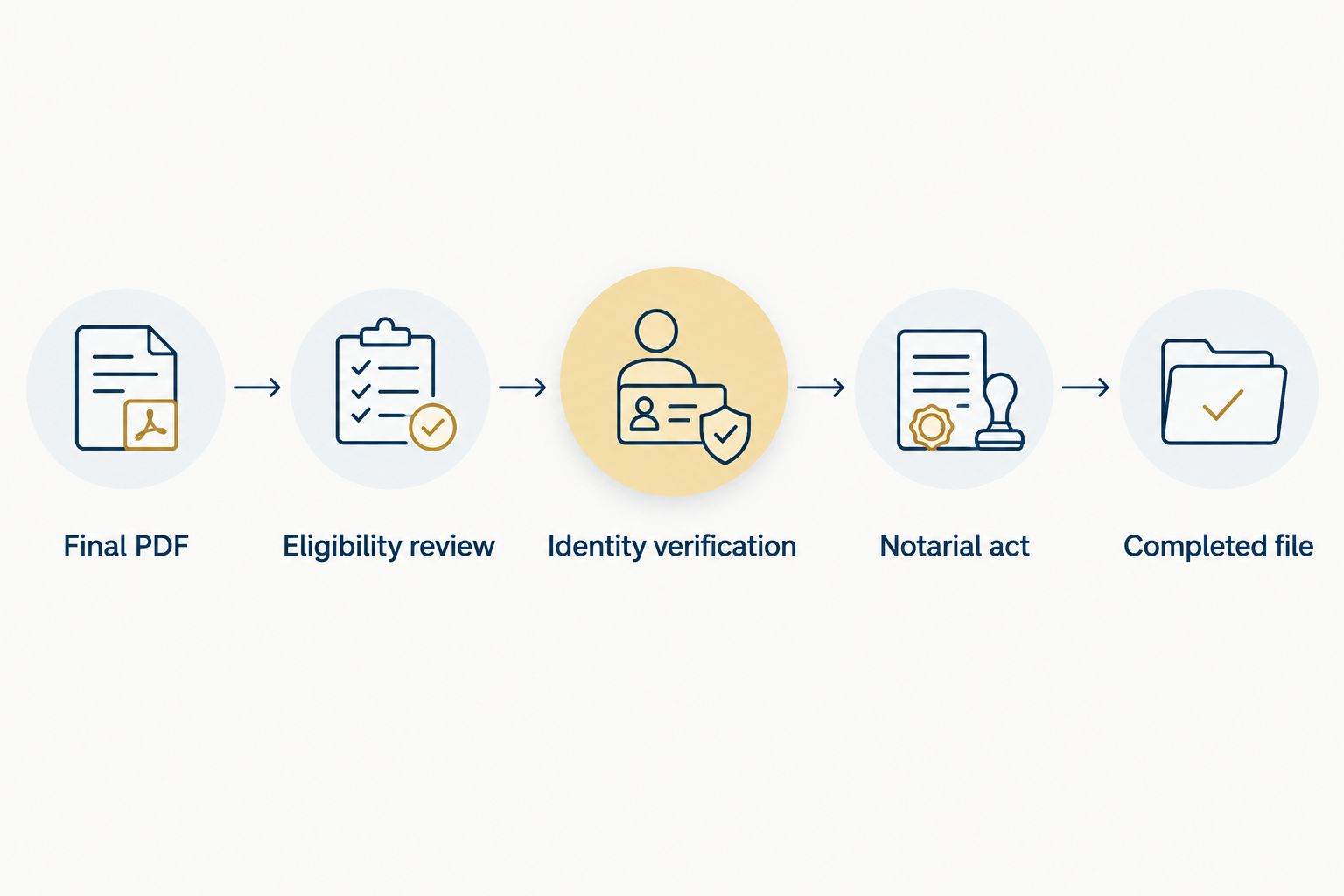
Use this sequence as your 2026 document handoff:
Final PDF establishes the appointment version. Eligibility review checks the proposed route. Identity verification precedes the required Notarial act. Completed file marks the return to controlled storage.
Repeat workflow when a Google Drive document changes
A revised source document needs a fresh preparation decision. Do not replace pages in a completed notarized file to make it match a later Google Docs revision.
For recurring business documents, keep a reusable template separate from completed records. Copy the template into a new working document, update the relevant information, obtain internal approval, and export a fresh appointment PDF.
When a change arrives before the appointment, tell Craig which version replaces the earlier submission. Do not assume that editing the Google Docs source updates a PDF already provided for the session.
When a change arrives after notarization, ask the recipient and Craig how to proceed. Refer legal questions about the change to an attorney. Whether a new appointment is necessary depends on the document and the required correction; renaming the old file does not resolve the issue.
For a 2026 repeat-notarization log, record the document description, internal owner, appointment status, and completed-file location. Keep sensitive identification details out of a general team tracker.
Remote or mobile: choose the appointment route
Craigvetnotary offers remote online notarization through Proof and mobile notary appointments. Neither route makes an ineligible document eligible or replaces the recipient’s requirements.
| Appointment route | Best for | Practical advantage | Limitation |
|---|---|---|---|
| Maryland remote online notarization through Proof | Individuals and businesses with eligible documents and suitable session access | Keeps document preparation and the appointment in an electronic workflow | Requires eligibility confirmation, identity verification, and acceptance of the completed format |
| In-person mobile appointment | People seeking an in-person appointment when the circumstances call for it | Provides an in-person route rather than a remote session | Baltimore County availability and appointment arrangements require confirmation before booking |
Choose the route around the document, recipient, and participants—not around where the draft is stored. Google Drive can hold preparation files for either route, but the appointment instructions determine what you must present and how.
Troubleshooting
The PDF looks different from Google Docs
Reopen the source and inspect page breaks, tables, images, and margins. Correct the source, export again, and inspect the replacement PDF before submitting it. Tell Craig if the replacement supersedes a file already provided.
Google Drive will not let you download
Ask the file owner for the necessary permission or a final downloadable copy. Do not work around a restriction with screenshots: screenshots can omit pages, reduce readability, and separate the document from its intended layout.
Identity verification does not complete
Follow the specific instructions shown in Proof and check the appointment guidance. Contact Craig or use the support route provided in the session. Do not substitute someone else’s account or identification, and do not assume an incomplete check can be skipped.
The session contains the wrong document
Stop before proceeding and identify the mismatch. Provide the correct version through the instructed route, then verify the replacement. Avoid asking the notary to reconstruct your intended document from several drafts during the appointment.
The recipient rejects the completed file
Ask for the exact rejection reason and preserve the file unchanged. Share the issue with Craig to distinguish a notarial-process question from a recipient-format or legal-document question. Do not alter a certificate or completed signature yourself.
Customize your workflow for recurring business documents
Assign a document owner who handles preparation and a separate internal approval checkpoint where your business needs one. The owner should confirm the recipient’s instructions, collect participant details, and identify the final PDF before requesting an appointment.
Keep the tracker simple: draft, internally approved, appointment requested, appointment confirmed, completed, and submitted. These are internal business statuses, not Proof button names. Only move an item to appointment confirmed after contact confirming the arrangements.
For recurring 2026 work, add a reminder to recheck eligibility and recipient requirements whenever the document template or intended use changes. Repeat business benefits from consistent preparation, but no template guarantees that every future document can be notarized remotely.
FAQ
Can I get Google Drive documents notarized in Maryland?
Yes, eligible documents prepared in Google Drive can proceed to Maryland remote online notarization through Proof. Export the final document and confirm eligibility and recipient requirements before the appointment.
Does sharing a Google Drive link notarize my document?
No. Sharing a Google Drive link only provides access to a file; notarization requires identity verification and the required notarial process.
Should I sign my PDF before the online appointment?
Do not sign ahead unless instructed for your document and notarial act. Follow Craig’s directions for the required signing or acknowledgment process.
Does submitting an appointment request confirm my booking?
No. Your appointment is not confirmed until Craigvetnotary contacts you with the arrangements. Prepare your document and participant details while awaiting contact.
Can my business reuse the same Google Docs template?
Yes, you can reuse a working template to prepare a new document. Review each completed draft, export a fresh PDF, and confirm eligibility rather than treating a previous notarization as approval for future documents.
Can I edit the notarized PDF after downloading it?
Keep the completed notarized PDF unchanged. Ask Craig about the proper correction process, and consult an attorney when the proposed change raises a legal question.
What if I need a mobile notary instead?
Ask about an in-person mobile appointment and confirm Baltimore County availability before booking. The document, participant requirements, and appointment arrangements still need confirmation.
Can Craig tell me which legal document to use?
No. Craig is not an attorney and cannot provide legal advice. Ask an attorney to advise on document selection, legal wording, or legal effect.
One last thing
The easiest file to misuse is the unsigned PDF that looks almost identical to the completed return. Separate those files by folder and filename immediately after the appointment, and share only the intended completed document. That small filing decision keeps your next handoff from undoing careful appointment preparation.