

Instead of manually chasing signatures and then discovering that a document still needs notarization, prepare the Adobe Sign file for eligibility review, then arrange Maryland remote online notarization through Proof for eligible documents. This 2026 workflow explains the handoff, identity verification, appointment request, and final delivery without treating an electronic signature as a notarization.
- For adobe sign documents notarized maryland searches: an Adobe Sign signature alone is not a notarization.
- Craigvetnotary offers Maryland remote online notarization through Proof for eligible documents, subject to document and identity review.
- Request recipient instructions before signing; a completed Adobe Sign file does not automatically qualify for remote notarization.
- An appointment request is not confirmation; wait until Craigvetnotary contacts you.
Why this matters
An electronic signature and a notarial act serve different purposes. Adobe Sign manages electronic signing workflows; notarization requires a notary to perform the applicable notarial act, including identity verification and the required personal appearance. For remote online notarization, that appearance takes place through an authorized online process, not an ordinary video call.
Craigvetnotary is best for Maryland individuals and businesses seeking remote online notarization through Proof for eligible documents. Start with Craigvetnotary to request document review and appointment guidance. Do not treat that request as a confirmed appointment.
The central issue in 2026 is the handoff: which file needs notarization, what the receiving organization requires, and whether the intended notarial act can proceed remotely. Resolve those questions before sending another signature request.
Before you start
- Document and recipient instructions: Gather the intended document, any attached notarial certificate, and the receiving organization's submission requirements. If you already completed an Adobe Sign agreement, preserve the downloaded document and its associated transaction records separately from any new working copy.
- Signer access and identity materials: Each signer needs access to the appointment instructions, the identity documents requested for verification, and equipment capable of supporting the required online session. Follow the actual Proof instructions rather than assuming a particular device or identification document will qualify.
- The signing-order gotcha: Do not assume an existing electronic signature can simply receive a notarial seal afterward. The required act, document condition, and recipient instructions determine whether an acknowledgment of an existing signature is appropriate or whether signing must occur during the appointment.
Craig is not an attorney and cannot provide legal advice. Ask the receiving organization or your attorney to resolve legal questions about document wording, the required notarial act, or whether a particular format satisfies your transaction.
Choose the right document handoff
There are two adjacent workflows: preparing an unsigned document that originated in Adobe Sign, and reviewing a document already signed there. Neither is an automatic Adobe Sign-to-Proof integration described by this guide.
| Workflow | Best for | Advantage | Limitation |
|---|---|---|---|
| Unsigned document handoff | A document whose notarization requirements are known before signing | Lets you resolve the signing sequence before anyone signs | Requires coordination if an Adobe Sign request is already circulating |
| Already-signed document review | A document completed in Adobe Sign before notarization was considered | Preserves the existing signed record for review | Existing signatures do not establish eligibility for the requested notarial act |
Use the unsigned document handoff when you control the process. The already-signed workflow is a review path, not a promise that the existing file can be notarized without changes or a new signing session.
Document requirements
Establish the receiving organization's instructions
- Identify the exact document. Record its title, intended recipient, and the people expected to sign. For a business packet, separate documents requiring notarization from documents requiring only electronic signatures.
- Ask about the accepted format. Confirm whether the recipient accepts an electronically notarized document and whether it requires a particular certificate, witness arrangement, or delivery method. Do not substitute a general statement that electronic signatures are accepted for an answer about remote notarization.
- Resolve the notarial act. Provide existing certificate wording for review. If the document lacks instructions, obtain direction from the recipient or legal counsel rather than asking the notary to make a legal choice for you.
Expected result: You have a defined document, identified signers, and recipient instructions that distinguish electronic signing from notarization.
For your 2026 business checklist, record the instructions alongside the document request. An instruction attached to a previous transaction is not a substitute for checking the current packet.
Prepare the Adobe Sign file
- Check the signing status. Determine whether the document is unsigned, awaiting signatures, or completed. If signatures are still being collected, resolve the notarial sequence before asking the remaining participants to continue.
- Preserve the original record. Keep the Adobe Sign output unchanged. Do not paste in a seal, add a notary's signature, remove certificate pages, or edit a signed agreement to make it appear ready for notarization.
- Identify the proposed working file. If a fresh unsigned document is needed, obtain it from the document owner. Keep the original signed record and the proposed working file clearly distinguishable, and explain which version you want reviewed.
Expected result: You can identify the file being reviewed without confusing it with an earlier signature record.
For an already-completed agreement, keep 2 separate records when applicable: the original Adobe Sign output and any replacement document authorized by the document owner. Those records serve different purposes; do not overwrite one with the other.
Appointment request and confirmation
Request eligibility review
- Describe the request. Explain that the document originated in Adobe Sign, whether it is already signed, who will receive it, and whether additional signers or witnesses are involved. Share sensitive materials only through the method provided for the appointment process.
- Disclose participation details. Tell the notary where each signer expects to be physically located during the session. Raise any identity-verification, accessibility, language, or equipment questions before an appointment is arranged.
- Wait for contact and confirmation. Follow the instructions supplied after review. A submitted inquiry, preferred time, or uploaded file does not establish a confirmed appointment.
Expected result: You receive direction on whether the request can proceed and what must happen before the session. Stop here if eligibility or the signing sequence remains unresolved.
Craigvetnotary's Maryland remote online notarization service uses Proof. This workflow does not claim that submitting an Adobe Sign document creates a Proof transaction, transfers files automatically, or reserves an appointment.
Prepare the signer handoff
Give each signer the same final document context and appointment instructions. Do not have a coordinator complete identity checks on another person's behalf or circulate another signer's private verification information.
Use 3 checkpoints before the appointment: recipient acceptance, document readiness, and signer readiness. A failure at any checkpoint is a reason to resolve the issue before proceeding, not to improvise during the session.
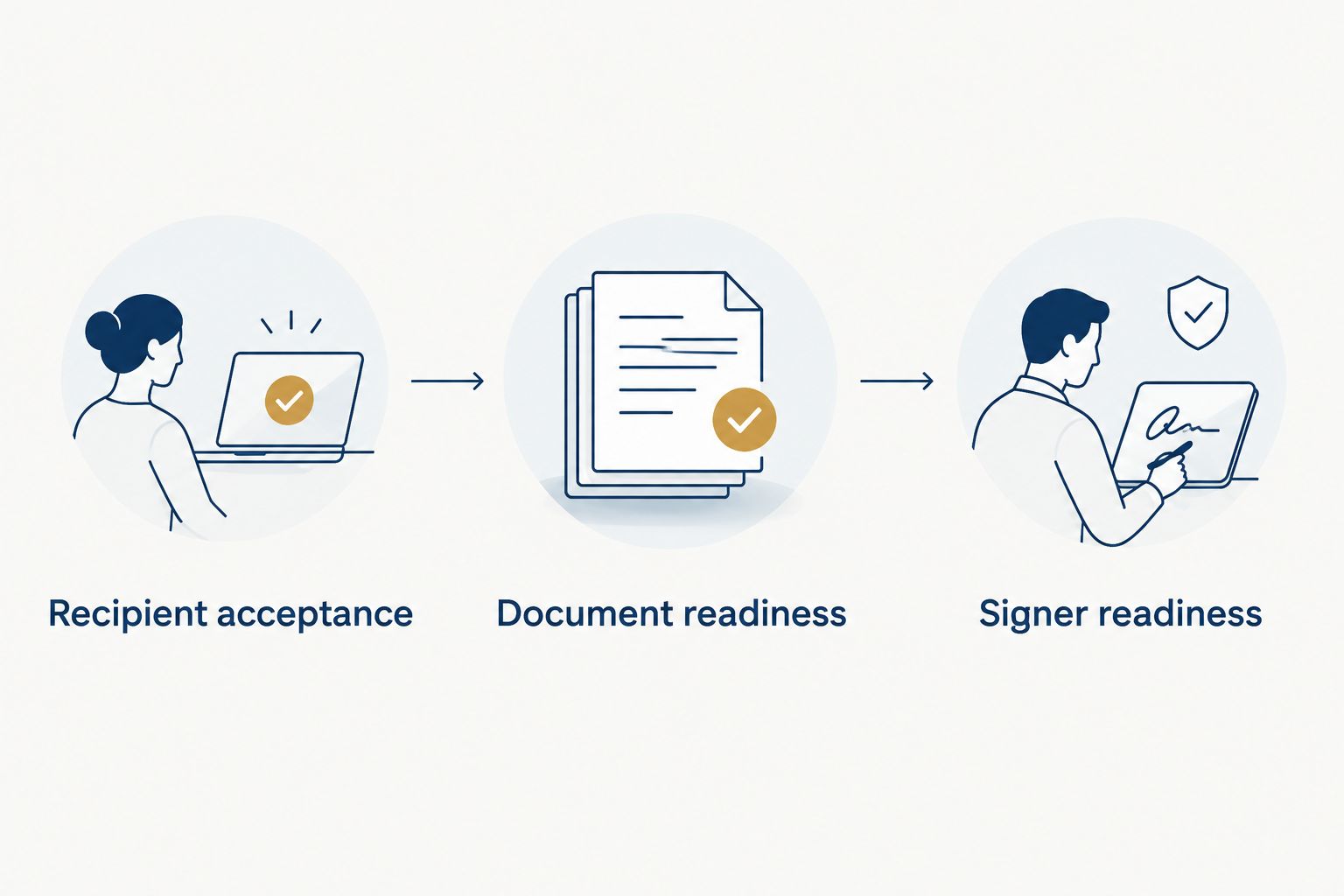
The practical benefit of this sequence is clear responsibility. The recipient states what it accepts, the document owner supplies the correct file, and each signer prepares for personal participation.
Proof session and final delivery
Complete verification and the notarial session
- Open the supplied session instructions. Use the appointment-specific directions rather than searching for an unrelated signing screen. Complete the identity-verification steps requested through Proof; an Adobe Sign identity check does not replace the notary's required process.
- Review the document presented. Check names, document identity, and the intended signing areas before taking action. Tell the notary immediately if the session contains an outdated version or a different document from the one reviewed.
- Follow the notary's signing directions. Complete the required acts during the session as instructed. Do not pre-sign a replacement document merely because the previous Adobe Sign version was already signed.
- Follow the completion instructions. Obtain the completed document through the instructed process and submit it in the recipient's required format. Keep the Adobe Sign record distinct from the completed notarized record when both belong in the transaction file.
Expected result: If the notarial act is completed, you have the completed document and a defined delivery path. If verification or another requirement prevents completion, you have an issue to resolve—not a notarized document.
For a 2026 transaction file, identify the document version, completion status, and delivery status separately. A completed online session and a recipient's acceptance are different events.
When an Adobe Sign document is already signed
Do not restart the entire transaction until the required act is clear. Some notarial acts involve acknowledging a signature; others require signing in the notary's presence. The relevant requirements, not the appearance of an electronic signature, control the next step.
Send a precise request: explain that the Adobe Sign agreement is completed, identify the requested notarization, and provide the receiving organization's instructions through the advised channel. Ask whether the existing document can be considered or whether the document owner needs to supply a fresh version.
Do not append a detached certificate yourself as a workaround. Certificate wording, attachment, and the notarial act need proper handling; an added page does not independently turn a signed agreement into a notarized document.
For repeat business requests, maintain 1 master checklist for intake, but review each new document independently. A familiar title does not establish that the parties, certificate wording, or recipient instructions are unchanged.
Troubleshooting
The recipient accepts Adobe Sign but rejects the notarized file
Electronic-signature acceptance does not answer every question about notarized-document acceptance. Ask the recipient to identify the specific issue—such as document format, certificate wording, or required execution method—then obtain appropriate instructions before arranging another session.
The signer cannot complete identity verification
Stop and follow the instructions provided through the appointment process. Confirm that the signer is using their own accurate information and the requested identification materials; do not ask a coworker or family member to complete verification instead.
The document in the session is the wrong version
Tell the notary before signing or acknowledging anything. Return to the document owner for the correct file and make the version distinction explicit; do not edit a signed record to conceal the mismatch.
Someone asks for a seal on the completed Adobe Sign PDF
A seal image is not a substitute for a notarial act. Explain that the signer must complete the applicable appearance, verification, and notarial requirements; route the document for eligibility review instead of requesting a stamp-only service.
Remote notarization cannot proceed
Ask what requirement prevents completion and what next step is appropriate. An in-person mobile appointment is a secondary option to discuss, not an automatic substitute; confirm Baltimore County arrangements before booking and wait for direct appointment confirmation.
Customize your workflow
For repeat notarizations in 2026, assign a document coordinator to collect recipient instructions and track versions. Keep identity verification with the signer and the appointment process, rather than building a shared folder of employees' identification documents.
Use a short intake template covering document title, recipient, signing status, signer location, witness instructions, and requested timing. Its advantage is consistency; its limit is that a completed template does not establish legal sufficiency or remote eligibility.
Keep the two services distinct. Remote online notarization through Proof avoids arranging an in-person meeting for eligible documents, but depends on successful verification and the online process. Mobile notarization provides an in-person route to discuss, but requires location coordination and confirmation of Baltimore County arrangements before booking.
FAQ
Can I get an Adobe Sign document notarized in Maryland?
An eligible document originating in Adobe Sign can be considered for Maryland notarization, but its electronic signature alone is not notarization. Confirm the requested act, recipient requirements, and document condition before arranging the session.
Does Adobe Sign automatically send my document to Proof?
This workflow uses a reviewed handoff, not an assumed automatic transfer from Adobe Sign to Proof. Follow the document-submission and appointment instructions provided for your request.
Should I sign the document before my online notary appointment?
Follow the notary's instructions for the required act before signing. Some acts require signing in the notary's presence, so do not assume a pre-signed document is suitable.
Can a notary add a seal to my completed Adobe Sign agreement?
A notary cannot replace the required notarial process with a seal image. The document and requested act need review, and the signer must meet the applicable appearance and verification requirements.
Is my appointment confirmed after I submit a request?
No. Your appointment is not confirmed until Craigvetnotary contacts you and provides confirmation; submitting a request or selecting a preferred time does not confirm it.
How should a Maryland business prepare repeat notarizations?
Use a consistent intake checklist while reviewing every document separately. Confirm recipient instructions, signing status, participant details, and the correct file before requesting each appointment.
What if I need a mobile notary instead of Proof?
Ask about an in-person mobile appointment and confirm Baltimore County arrangements before booking. Mobile service is a separate appointment path, not a confirmed replacement for an unsuccessful remote session.
One last thing
Ask the recipient about notarization before launching the Adobe Sign request. That single sequencing decision prevents you from treating a completed signature packet as proof that the notarial requirements are satisfied.
For your 2026 procedure, place that question above the signature-request task, not below it. Craig is not an attorney and cannot provide legal advice; obtain legal direction from your attorney when the document or required act is unclear.